If you work in digital marketing, content creation, or video production, you know the absolute headache of “tool fatigue.” On any given project, your workflow probably looks like a fragmented mess: you use one sketchy website to scrape a video clip, open a clunky desktop app to convert the file format, and then upload the whole thing to a third-party cloud service just to generate a decent subtitle file.
Not only does this constant tab-switching kill your creative momentum, but relying on free online converters also exposes you to sketchy pop-up ads, file size limits, and privacy risks.
Enter Need Keep by VidKitSoft. Positioned as an all-in-one AI Video Downloader, Free Video Converter, and Subtitle Tool, this lightweight Windows application claims to bring your entire pre-production workflow under one roof. But does it actually deliver on the promise of a unified local pipeline?
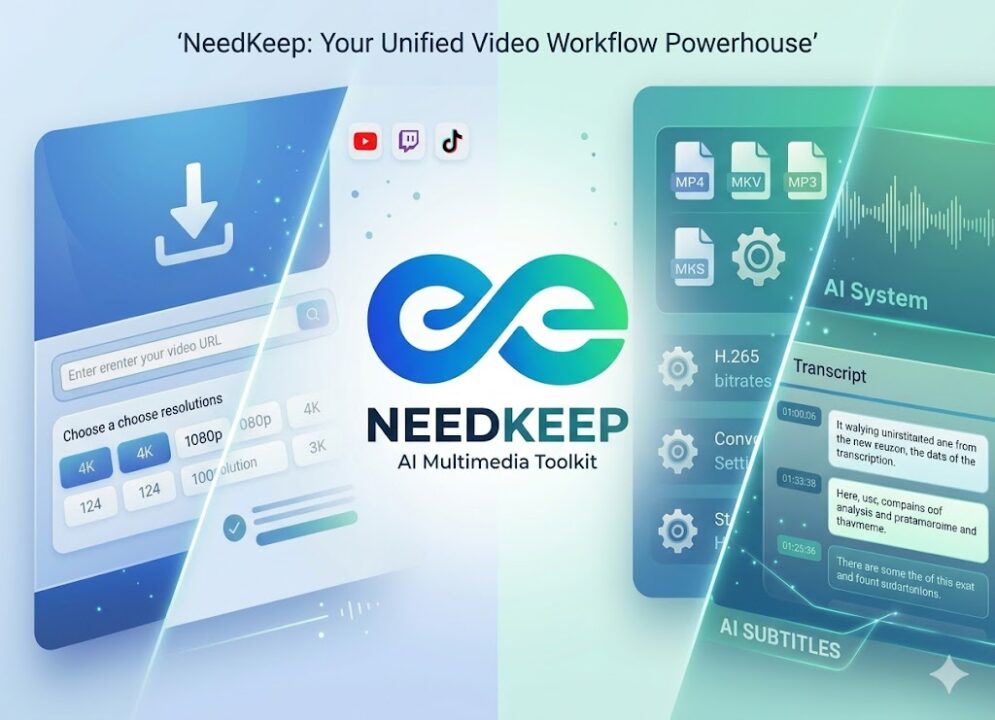
Let’s break down the details, features, and performance of Need Keep in this comprehensive, no-nonsense review.
Need Keep Overview: Fast Facts
Before we dive into the core features, here is a quick look at the software’s current specifications:
| Feature | Specification |
| Developer | VidKitSoft |
| License | Free |
| File Size | 177 MB |
| Operating System | Windows 7, 10, 11 (64-bit recommended) |
| User Rating | ★★★★☆ (4.7/5 Stars) |
| Core Tech | GPU Acceleration & Local AI Speech-to-Text |
1. The High-Speed Free Video Downloader
The foundation of Need Keep is its downloading engine. Unlike browser extensions that often choke on large files or cap your download speeds to force a premium upgrade, Need Keep pulls clean source files without arbitrary throttles.
It natively parses links from practically every major video and audio platform you’d expect—including YouTube, Facebook, SoundCloud, Bilibili, Twitch, and TikTok.
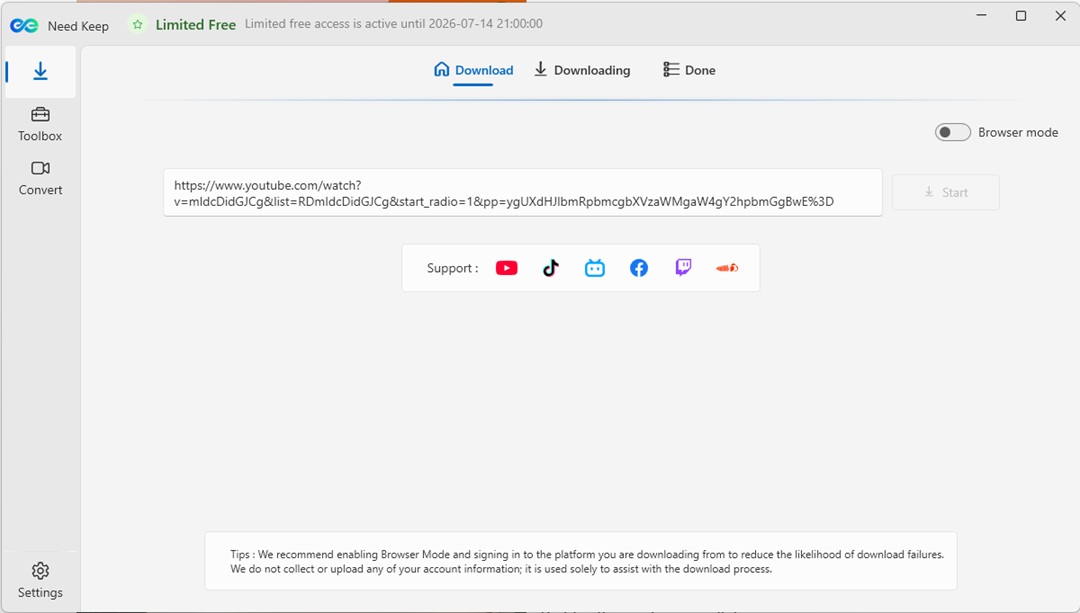
Key Downloader Features:
- Playlist & Batch Ingestion: Instead of copying and pasting twenty individual links, you can drop an entire playlist URL into the software. It analyzes the link, extracts the contents, and lets you batch-queue the whole thing in a couple of clicks.
- Lossless Audio Extraction: For podcasters, audio editors, and sound designers, you can bypass the video entirely and extract original, uncompressed WAV files or high-quality MP3s straight from the source.
- Ultra-HD Support: If a platform hosts a video in raw 4K or crisp 1080p, Need Keep will grab the maximum available resolution alongside any separate subtitle assets.
2. A Free Video Converter Built for Editors
File type mismatches are a recurring nightmare when importing assets into non-linear editors (NLEs) like Premiere Pro, DaVinci Resolve, or Avid. Need Keep bridges this gap by acting as a robust, precise video converter with advanced encoding controls.
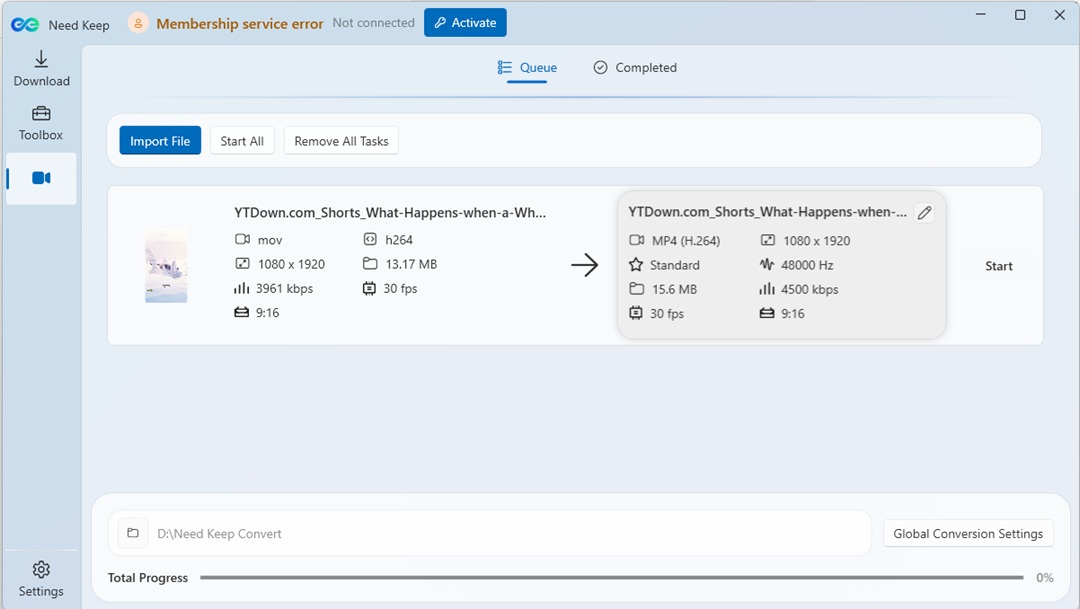
[Import Media] ➔ [Configure Codec/CRF] ➔ [GPU Render / Local Export]
Advanced Encoding Controls:
- H.265 + CRF Encoding: You can compress massive files using modern H.265/HEVC codecs. By utilizing Constant Rate Factor (CRF) adjustments, the app automatically balances file compression without sacrificing visual fidelity.
- Instant MP4 Remuxing: If you just need to change the container (e.g., changing an MKV to an MP4) without actually re-encoding the video streams, Need Keep handles this instantly. It saves massive amounts of processing time when you are up against a tight deadline.
- Target-Size Compression: This is an incredibly practical feature for digital marketers. If you need to send a video over email or Slack and are restricted by a 25MB limit, you simply type “25MB” into the target-size box. Need Keep will reverse-engineer the required bitrates to fit that exact constraint.
- Built-in Clip Trimming: You don’t need to open a heavy editor just to cut out silence or dead space. A basic visual timeline lets you trim the beginning and end of clips before you export.
3. Need Keep Subtitle Extractor: The AI Difference
While there are plenty of downloader/converter hybrids on the market, the inclusion of a native AI-driven speech-to-text subsystem is what elevates Need Keep from a standard utility tool into a true productivity powerhouse.
Using localized language models, the app “listens” to your media files and instantly transcribes audio into highly accurate, timestamped text blocks.
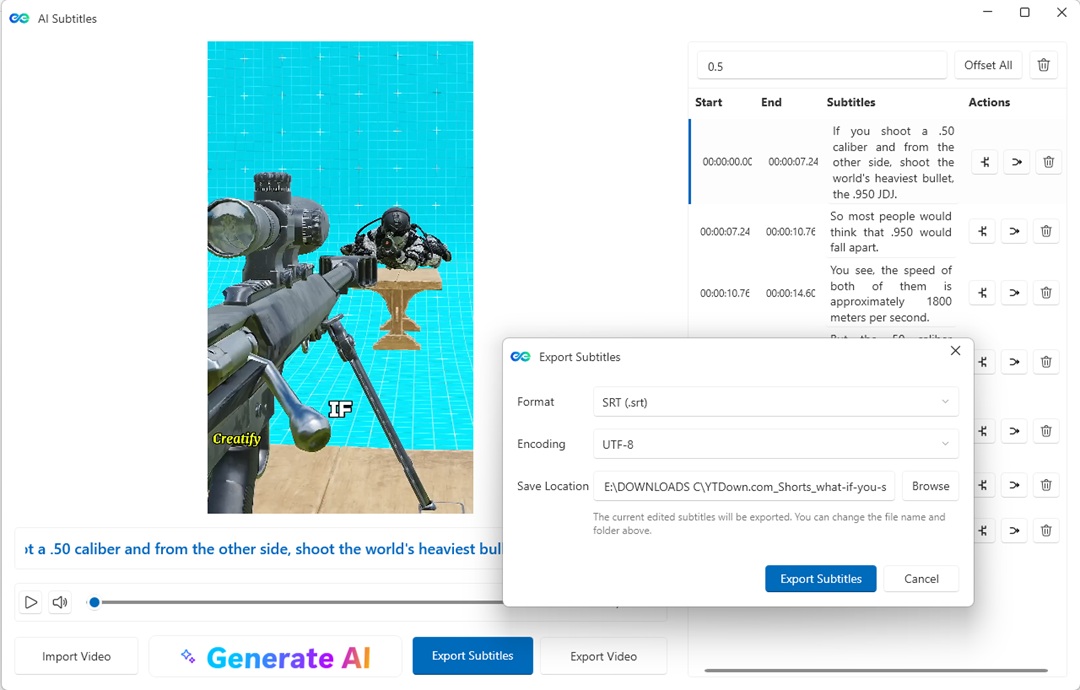
[Local Audio/Video] ➔ [Local AI Transcription] ➔ [Sync Editor] ➔ [.SRT / Burn-In]
- Multilingual Timelines: The deep acoustic models parse multiple global languages natively (fully supporting English, Spanish, French, German, Portuguese, Japanese, Korean, and Simplified/Traditional Chinese), accurately managing distinct pauses and speaker pacing.
- Integrated Sync Editor: You don’t have to jump to Notepad to fix transcription errors. The app features a dedicated visual subtitle timeline where you can correct typos, adjust time blocks, and refine line breaks on the fly.
- Flexible Outputs: Once your subtitles are ready, you can export them as standard standalone
.SRTfiles, pack them as soft subtitles inside an MKV/MP4 container, or burn them permanently into the video matrix (essential for short-form video formats like TikTok or Instagram Reels).
User Experience: Simple, Dual-Optimized Workflows
Software utilities often fail because they clutter the dashboard with dozens of confusing menus. Need Keep avoids this design trap entirely by separating its operations into two highly readable, step-by-step user interfaces.
📋 The Workflow Matrix
| Step | Convert Mode (Local Files) | Save Mode (URL Links) |
| Step 1: Ingestion | Import Media: Drag and drop single or batch video files directly into the UI workspace. | Paste Link: Copy an authorized URL to let the internal scraper inspect the remote source. |
| Step 2: Setup | Configure Settings: Select your container, codec, aspect ratio, and toggle AI subtitle generation. | Select Formats: Check the boxes for your required video resolution, audio codecs, or closed captions. |
| Step 3: Execution | GPU Render: Run the localized rendering pipeline utilizing hardware acceleration. | Local Cache: Save the files straight to your local directory for immediate editing or playback access. |
The Pros & Cons: An Objective Breakdown
Before downloading any tool, it’s best to know exactly where it shines and where it falls short.
The Pros:
- Unified Local Pipeline: Drastically cuts down creative friction by combining media scraping, transcoding, and transcription into a single desktop footprint.
- Hardware Acceleration Support: Because it leverages your local GPU profiles, heavy H.265 conversions and deep-learning AI subtitle processes run incredibly fast without locking up or freezing your operating system.
- Clean, Secure Environment: Operating strictly as a local desktop app means you encounter zero spam redirects, cookie trackers, or sketchy pop-up windows typical of web-based tools.
- Native Localization: Fully supports 9 major global languages right out of the box.
The Cons:
- Windows Only (For Now): The application is currently built exclusively for Windows 7/10/11 environments. Mac users will have to wait, though a macOS build is reportedly in active development.
- Hardware Dependent Performance: Because transcription and video compression happen entirely on your local machine (not in the cloud), older or lower-spec PCs will experience longer rendering times when dealing with heavy 4K content.
The Final Verdict: Is Need Keep Worth It?
If you are a casual internet user who only needs to download one video clip a month, a basic browser extension or free web tool will work just fine.
However, if you are a professional content creator, localization expert, video editor, or social media manager, workflow fragmentation is a massive time-sink. In that context, Need Keep by VidKitSoft offers immense practical value.
By pulling downloading, advanced encoding, and precise AI subtitle extraction into two incredibly intuitive local workflows, it solves an annoying administrative bottleneck. It is clean, secure, remarkably fast, and highly recommended for any creator looking to reclaim valuable hours during pre-production.